
Since I’ve had really good experiences with VCF 9.0 in a nested setup over the last few months, this week I finally got around to upgrading my physical lab to the latest VMware Cloud Foundation 9.0.
For those who haven’t been following my homelab story from the beginning, here’s a quick recap.
My current home lab setup has been in place since mid-2020, with the necessary adjustments made over the last 5 years. Nevertheless, since 2020, I have been running a 3-node vSphere cluster with vSAN, which even back then had a very similar design to the later Cloud Foundation from version 4 onwards. This means that all products from the former vRealize Suite and later Aria Suite were also in use.
Of course, after five years of operation, I considered several times whether to wipe everything and start with a greenfield approach using VMware Cloud Foundation 9.0.
However, I kept hearing the question from the field and from my customers: How do we get our “current” environments, whether vSphere or even VCF 5.x, to VCF 9.0?
That’s why I decided to take the brownfield approach to VCF 9.0, so that I can share my experiences with my customers and, above all, be prepared for exactly what needs to be considered in detail.
How I made my way to VCF 9.0:
Planning Phase
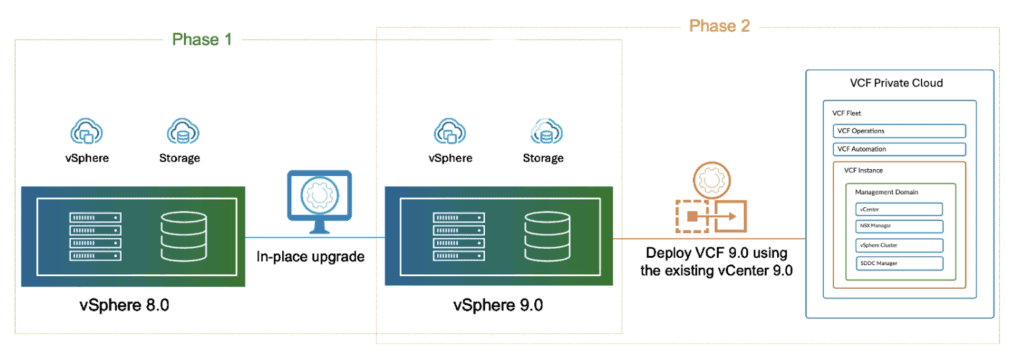
First, I took the time to review and understand the available documentation from Broadcom.
I used the following documents for reference:
Converging a vCenter Instance and ESX Hosts
Converging Existing Virtual Infrastructure to a VCF or a vSphere Foundation Platform
I was able to glean the following information from the documents:
-This method allows me to migrate my existing environment to VCF 9.0, but I need to make a few adjustments beforehand.
-The biggest showstopper was definitely my NSX installation, but since my NSX environment had broken down about 1.5 years ago and was only “installed,” it wasn’t a big deal for me to give it up. However, looking at customer scenarios, this poses a significant problem because NSX is not supported in a brownfield scenario.
-My current vSphere environment needs to be updated to vCenter 9.0 and ESX 09.0.
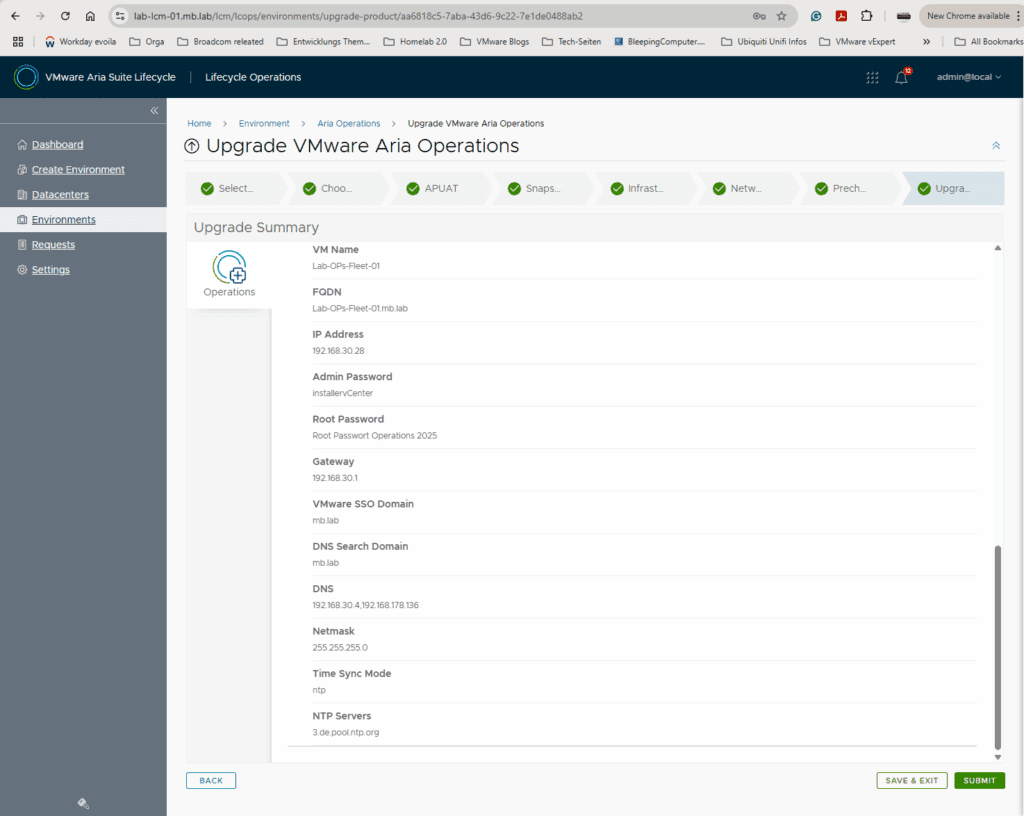
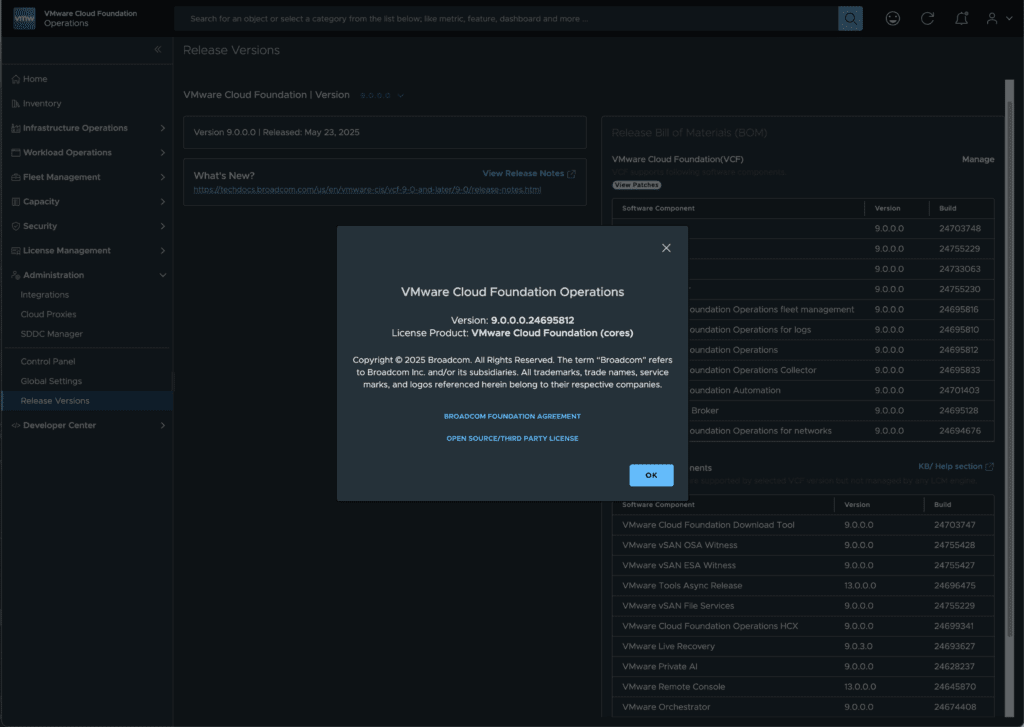
Unfortunately, what is not described in the two referenced documents above is that you also have to more or less “manually” update Aria Operations to version 09.0 before starting the process. I already did this a few months ago.
The procedure for this is to first update Aria Operations to the latest patch for version 8.18.3 and then use the well-served Aria Lifecycle Manager one last time to update Aria Operations to version 9.0.
For reference, you can find a document from Broadcom here that describes the process well.
Convert existing vSphere + Aria Operations to VMware Cloud Foundation
Implementation phase
Once the planning phase was complete, I followed the procedure and sequence outlined in this document fairly closely:
-Upgrade my vCenter to version 9.0
The vCenter upgrade process was straightforward, so unfortunately, I neglected to take screenshots of it.
-Upgrade my ESX hosts to version 9.0
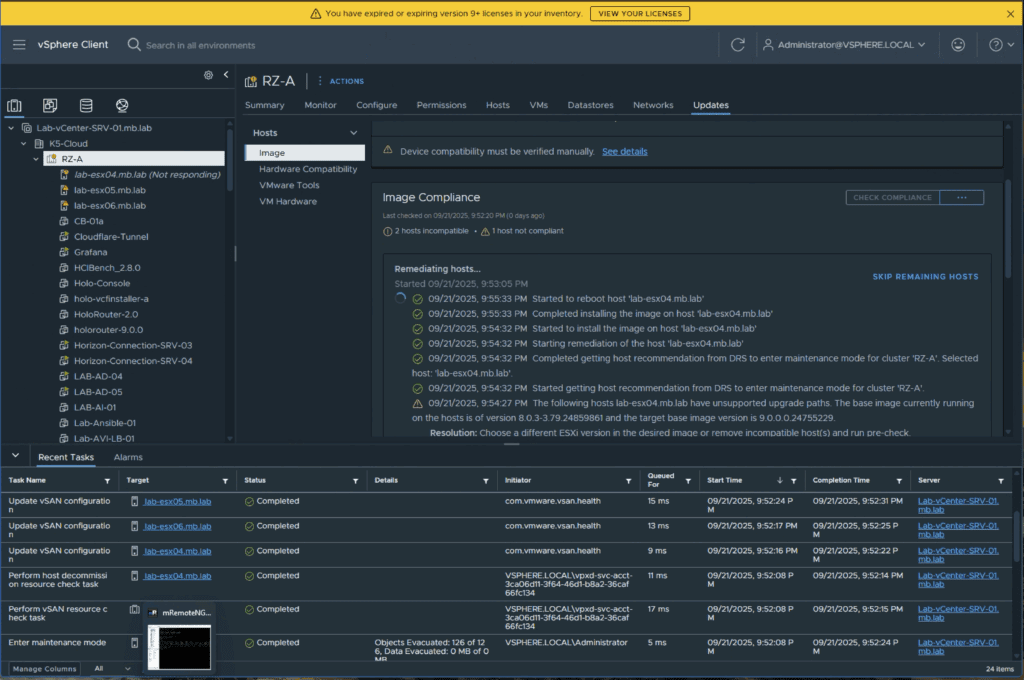
-Deploy the VCF installer, which will later become the SDDC manager.

-Downloading the VCF binaries to the VCF Installer
-Starting the Converge process in the VCF Installer
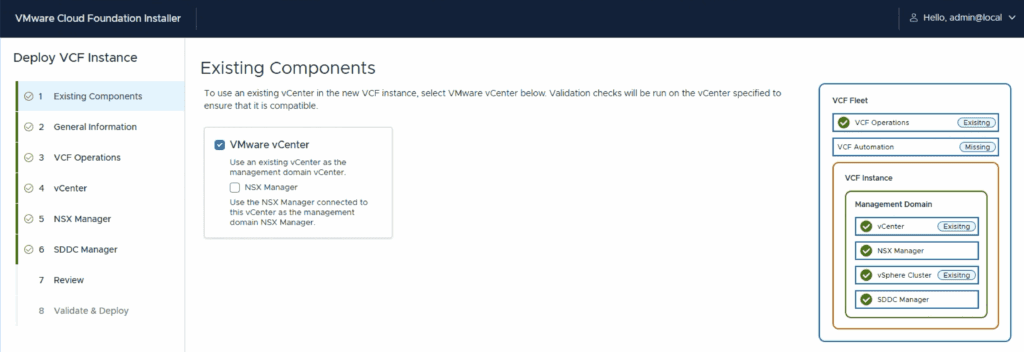
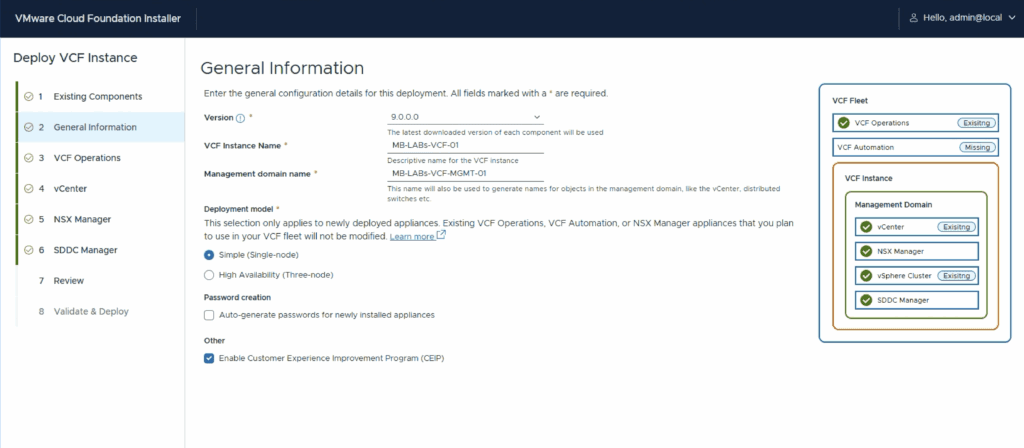
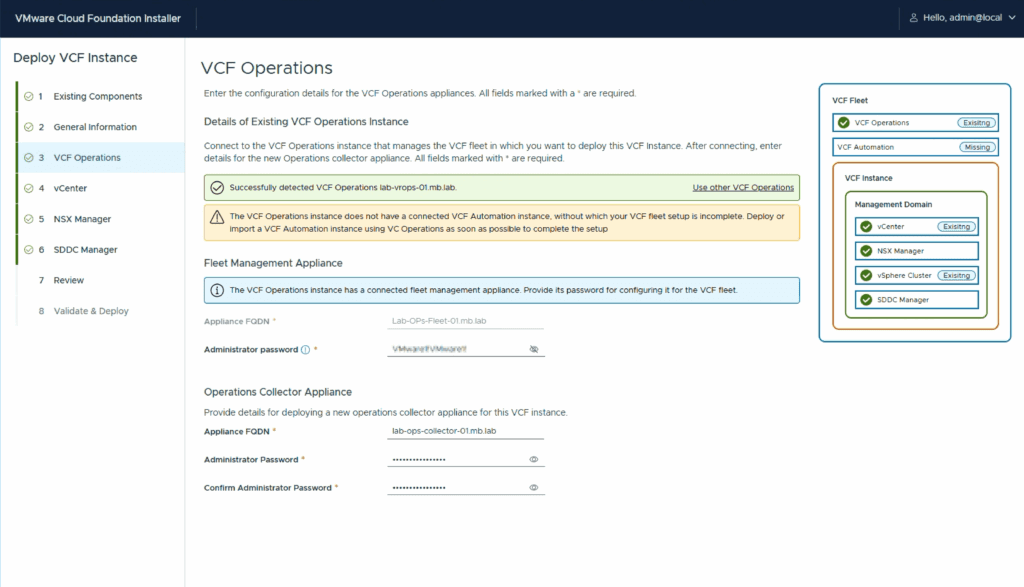
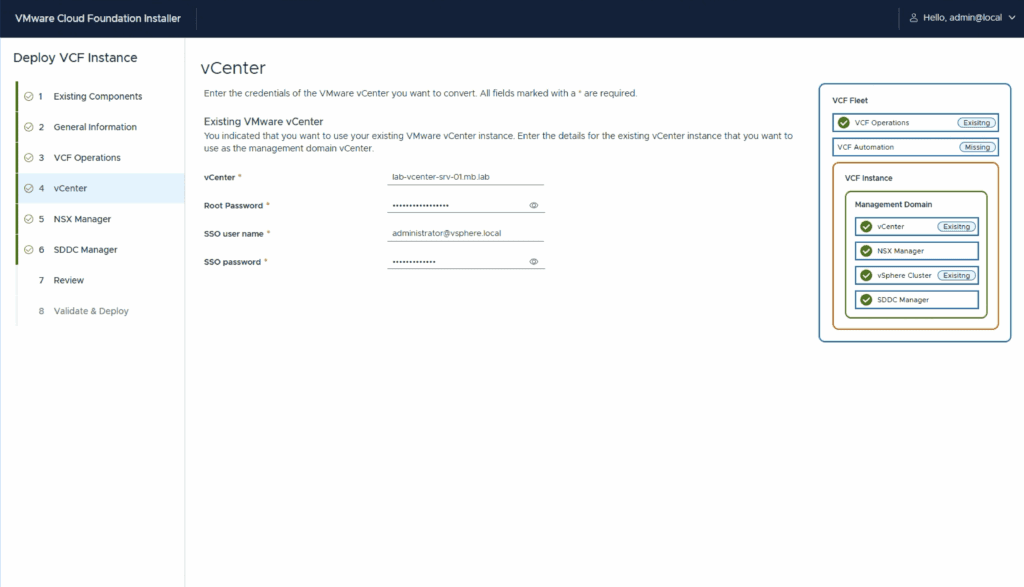
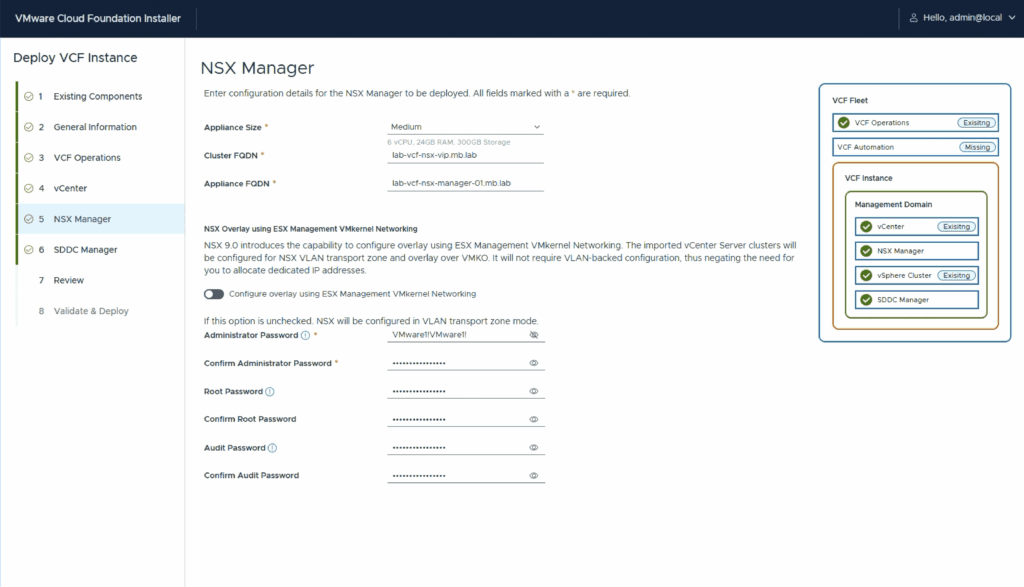

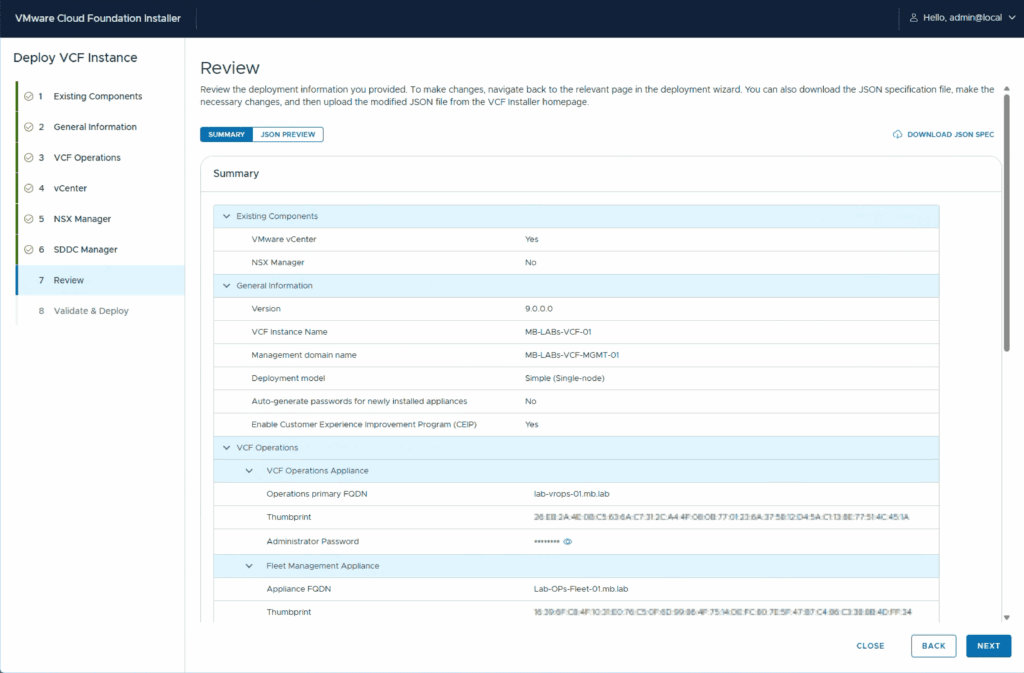
After feeding the VCF Installer with the environment parameters of my environment, things got really interesting for the first time, and the first validation took place to see whether the workflow for Converge to VCF 9.0 could be started.
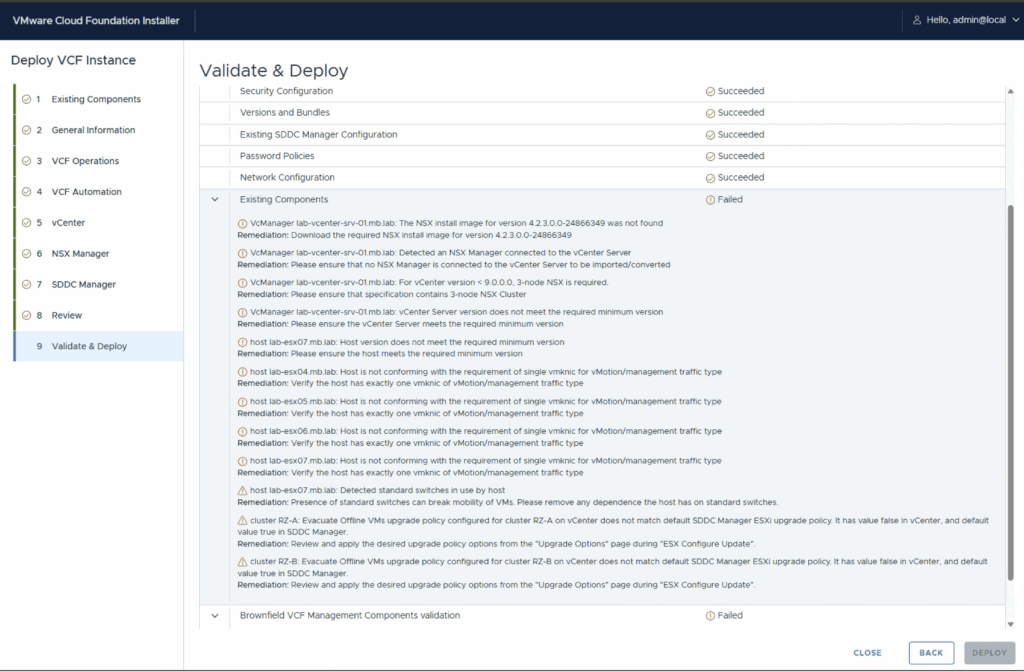
Therefore, I still had some work to do.
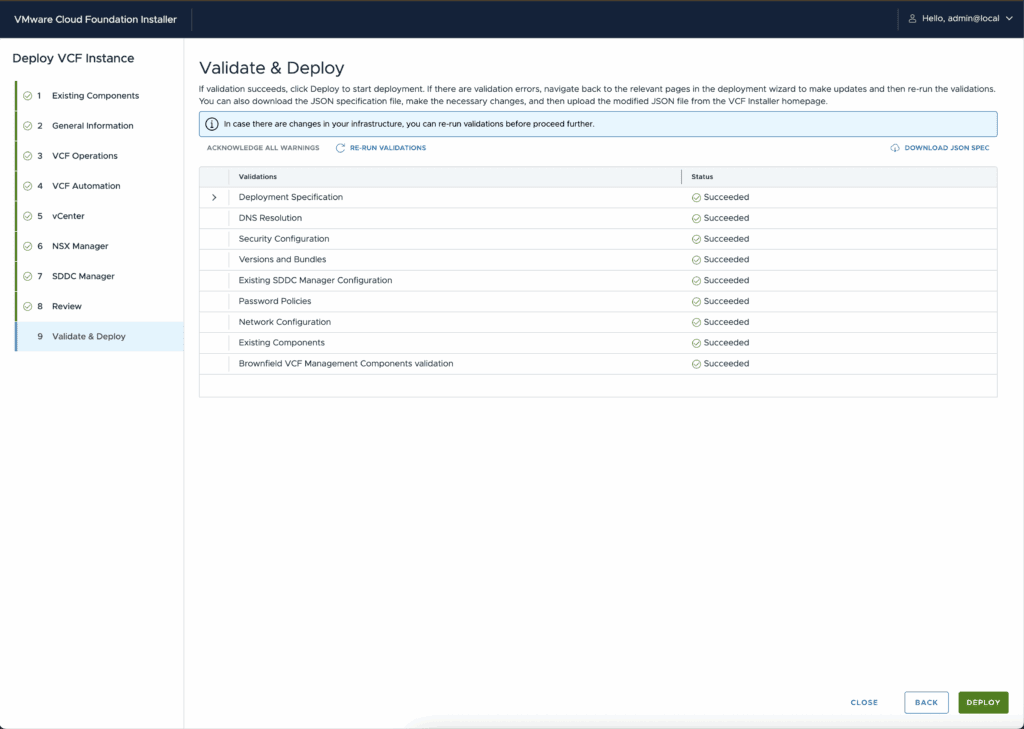
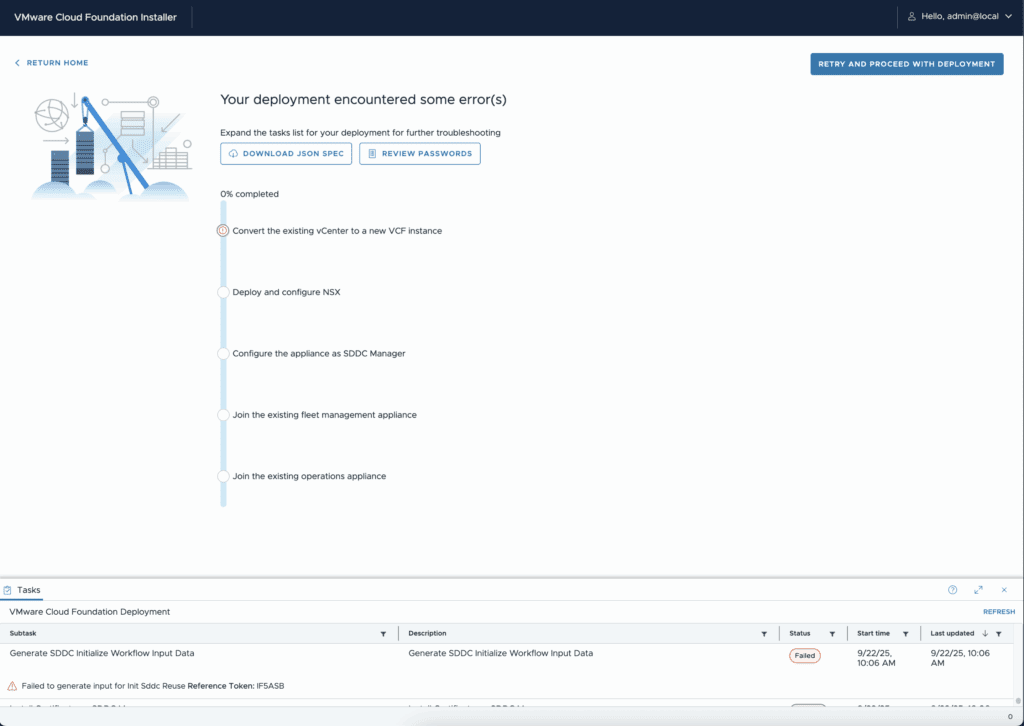
One issue that I have encountered repeatedly in recent years, since I have been setting up various VCF installations for customers, is DNS names and the bad habit of not writing them in lowercase according to the RFC standard, but instead mixing uppercase and lowercase letters. Unfortunately, this also applies to my home lab, where I have not adhered to this rule.
After checking the log files, I came back to it –
useful Log-Locations in VCF-Installer / SDDC-Manager:
/var/log/vmware/vcf/domainmanager/domainmanager.log
/var/log/vmware/vcf/operationsmanager/operationsmanager.log
2025-09-22T09:32:14.069+0000 INFO  [vcf_dm,68d1179dd15f6a1ec0e5c0f61f232b30,3400] [c.v.e.s.c.c.v.vsphere.VsphereClient,dm-exec-29]  Successfully logged in to https://lab-vcenter-srv-01.mb.lab:443/sdk
2025-09-22T09:32:14.070+0000 INFO  [vcf_dm,68d1179dd15f6a1ec0e5c0f61f232b30,3400] [c.v.e.s.c.c.v.vsphere.VcManagerBase,dm-exec-29]  Searching for the datacenter of the VC lab-vcenter-srv-01.mb.lab
2025-09-22T09:32:14.070+0000 INFO  [vcf_dm,68d1179dd15f6a1ec0e5c0f61f232b30,3400] [c.v.e.s.c.c.v.vsphere.VcManagerBase,dm-exec-29]  Searching for the cluster Name of VC lab-vcenter-srv-01.mb.lab
2025-09-22T09:32:14.638+0000 DEBUG [vcf_dm,68d1179dd15f6a1ec0e5c0f61f232b30,3400] [c.v.e.s.c.c.v.vsphere.VcManagerBase,dm-exec-29]  Searching for VM with address lab-vcenter-srv-01.mb.lab
2025-09-22T09:32:15.295+0000 DEBUG [vcf_dm,68d1179dd15f6a1ec0e5c0f61f232b30,3400] [c.v.e.s.c.c.v.vsphere.VcManagerBase,dm-exec-29]  VM with address lab-vcenter-srv-01.mb.lab not found
2025-09-22T09:32:15.295+0000 DEBUG [vcf_dm,68d1179dd15f6a1ec0e5c0f61f232b30,3400] [c.v.e.s.c.c.v.vsphere.VsphereClient,dm-exec-29]  Destroying 1 open views
2025-09-22T09:32:15.311+0000 ERROR [vcf_dm,68d1179dd15f6a1ec0e5c0f61f232b30,3400] [c.v.e.s.o.model.error.ErrorFactory,dm-exec-29]  [USCH1C] FAILED_TO_GENERATE_INPUT_INIT_SDDC_REUSE Failed to generate input for Init Sddc Reuse
com.vmware.evo.sddc.orchestrator.exceptions.OrchTaskException: Failed to generate input for Init Sddc Reuse
Therefore, in my case, I now have a mix of DNS name spellings. When I originally installed my vCenter X years ago, I did not adhere to the RFC convention and used a mixture of upper and lower case letters in the FQDN “Lab-vCenter-SRV-01.mb.lab.” However, the workflow or VCF installer (SDDC Manager) was still looking for an FQDN name written entirely in lower case, which is why the workflow encountered an error.
I therefore had to modify the previously downloaded JSON file and restart the workflow.
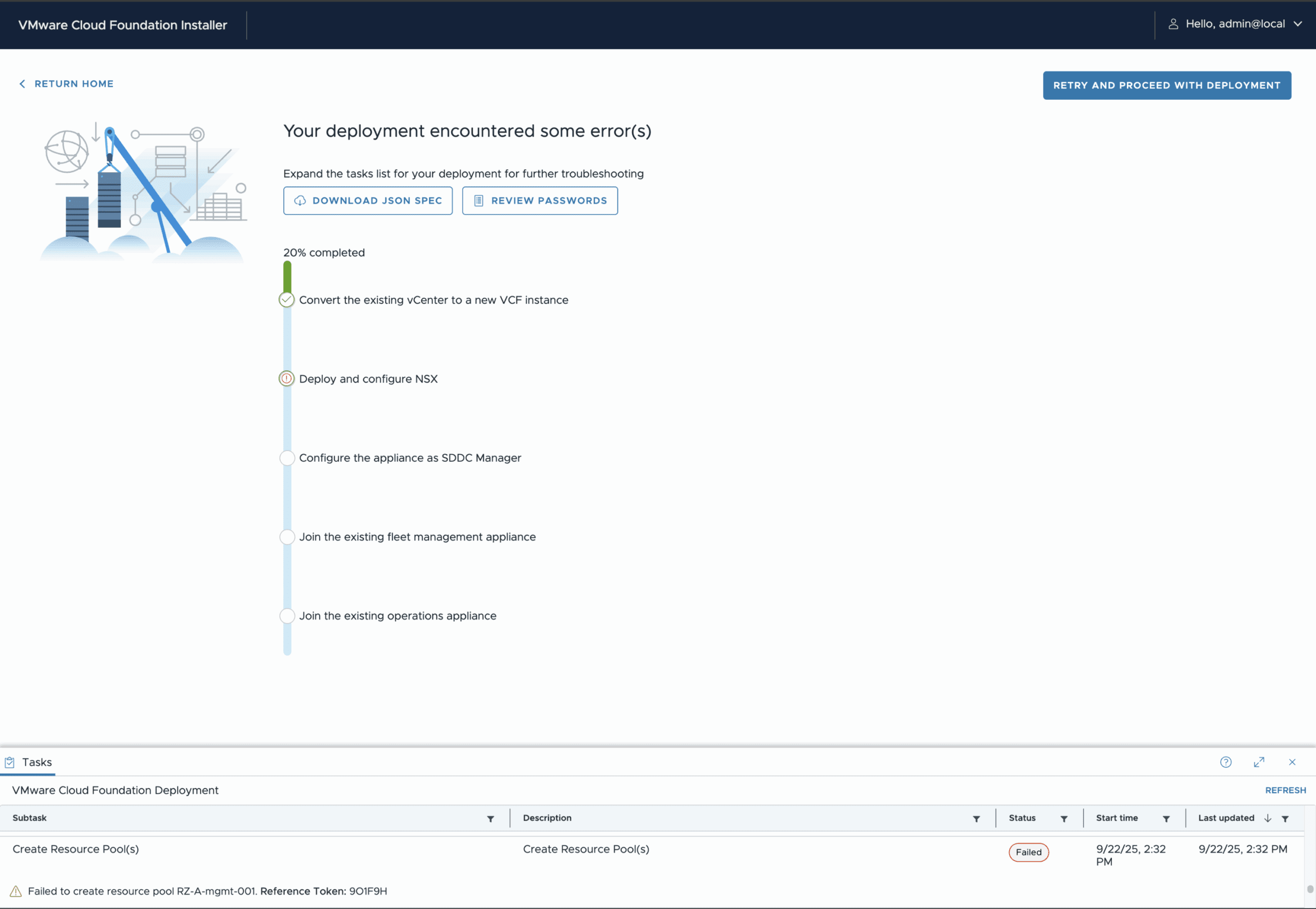
After adjusting the DNS name and case sensitivity, the workflow actually continued. However, it only got as far as the second step before encountering another error. 🙁
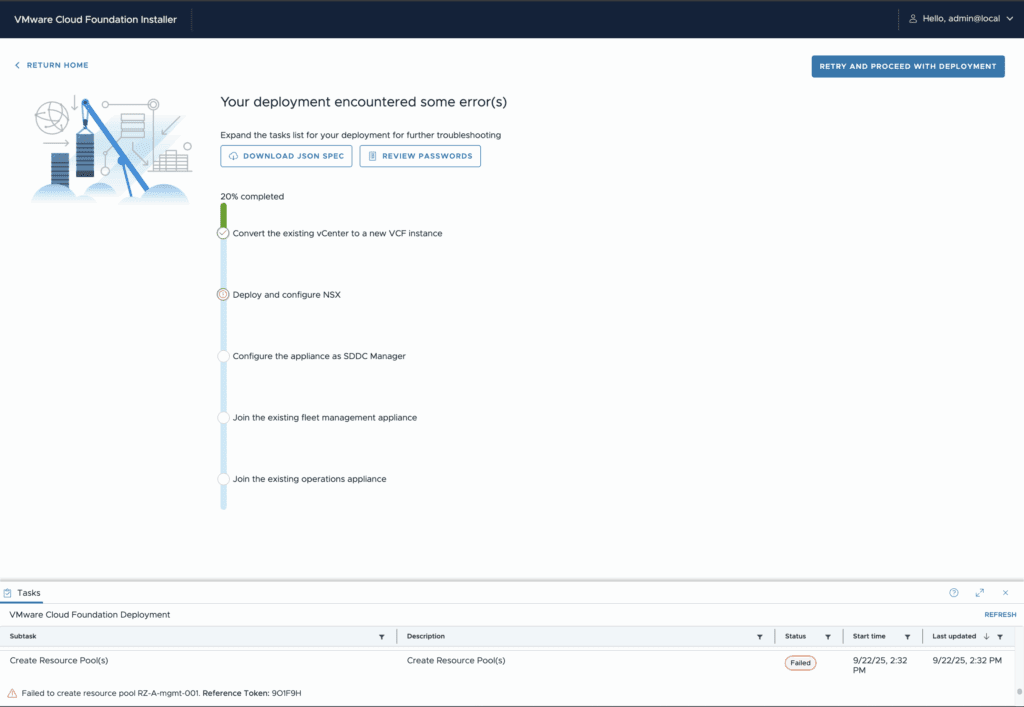
So once again, I had to search through log files to find out what was causing this error.
Fortunately, there was an entry about it in the domain manager’s log file.
2025-09-22T12:39:15.388+0000 INFO  [vcf_dm,68d1436ddd8de99fa809e2d38950811e,4294] [c.v.v.v.f.a.ValidateDomainResourcesForNsxDeploymentAction,dm-exec-35]  NSX Manager deployment requires - [CPU:6 vCPUs, Memory:24 GB, Storage:300 GB]. Available: [CPU:2220 vCPUs, Memory:-437 GB, Storage:12041 GB].
2025-09-22T12:39:15.388+0000 ERROR [vcf_dm,68d1436ddd8de99fa809e2d38950811e,4294] [c.v.e.s.o.model.error.ErrorFactory,dm-exec-35]  [VR49GN] NOT_ENOUGH_RESOURCES_IN_MANAGEMENT_DOMAIN Not enough resources found in management domain. Required - CPU:6 vCpus, Memory:24 GB, Storage:300 GB. Available - CPU:2220 vCpus, Memory:-437 GB, Storage:12041 GB.
com.vmware.evo.sddc.orchestrator.exceptions.OrchTaskException: Not enough resources found in management domain. Required - CPU:6 vCpus, Memory:24 GB, Storage:300 GB. Available - CPU:2220 vCpus, Memory:-437 GB, Storage:12041 GB.
	at com.vmware.vcf.vimanager.fsm.actions.ValidateDomainResourcesForNsxDeploymentAction.execute(ValidateDomainResourcesForNsxDeploymentAction.java:122)
	at com.vmware.vcf.vimanager.fsm.actions.ValidateDomainResourcesForNsxDeploymentAction.execute(ValidateDomainResourcesForNsxDeploymentAction.java:37)
The error message actually told me that I didn’t have enough RAM to roll out the NSX Manager appliance, which requires 24 GB of RAM. What surprised me even more was that the available RAM in my cluster was -437 GB.
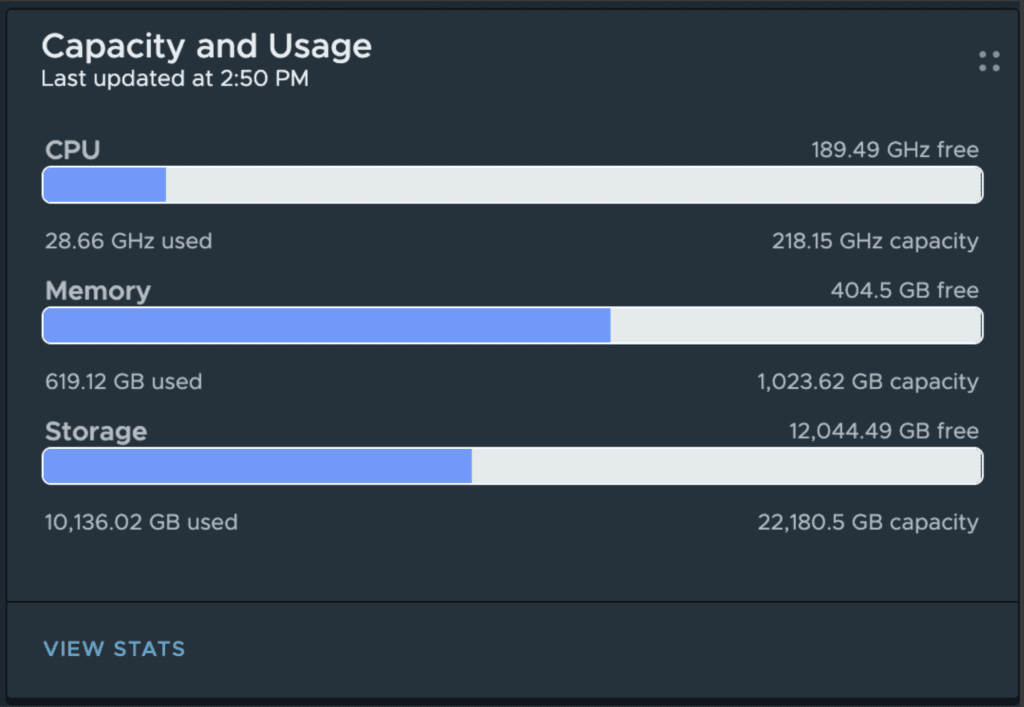
I was in the dark for quite some time because, at the time the workflow for deploying NSX Manager was running, my vCenter cluster had around 404 GB of free RAM.
At first, I thought it might be a bug that the free RAM of my cluster was not being read correctly, so I shut down a few more VMs in my cluster that I didn’t really need and ran the workflow again. Unfortunately, it ran into an error again, and when I checked the logs, I saw that nothing had changed at all; my cluster still had -437 GB of RAM available.
So now I needed some good advice, because what other options did I have to influence the value read by the VCF Installer/SDDC Manager during workflow execution?
The last thing that came to mind was actually to remove VMs from my cluster’s inventory. Of course, I started with VMs that were turned off. Then I restarted the workflow.
Believe it or not, the measured value I saw in the logs changed!
This means that an “incorrect” value is being looked at during the execution of the workflow. It makes no sense to look at the amount of RAM that all VMs within the cluster inventory have, regardless of whether they are switched on or off! Is this a bug?
I therefore removed “switched off” VMs from my cluster’s inventory until the “measured” value from the VCF installer was sufficient to deploy the new NSX Manager as a Workaround.
Conclusion
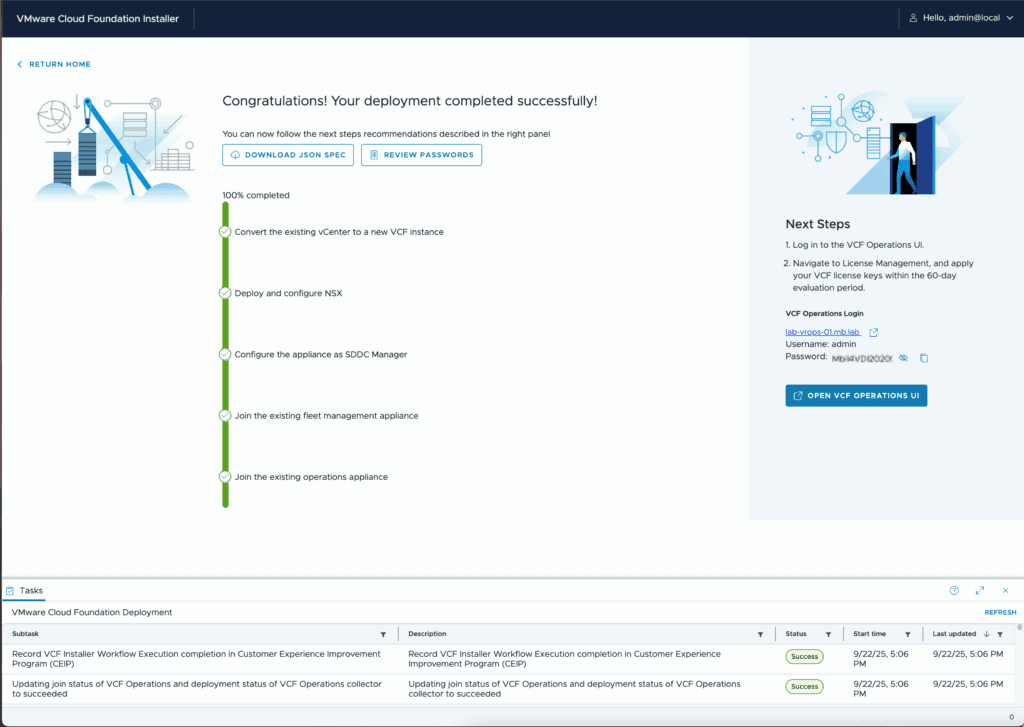
This means that by completing the deployment workflow, I have successfully added my existing vSphere environment to my VCF fleet and converted it to a VCF 9.0 management domain. I am really happy to have reached this milestone after only about a day of troubleshooting and adjustments in my existing environment. It could have ended worse. 😉
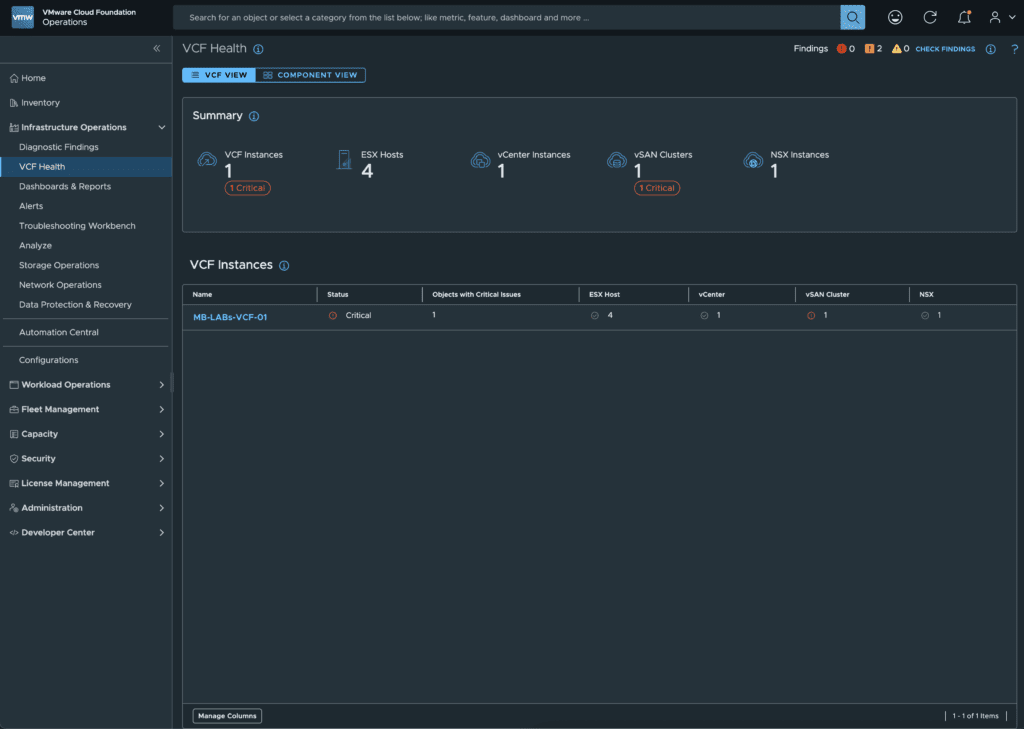
Learnings
-DNS is always to blame, even this time :).
For whatever reason, DNS names and FQDNs are case-sensitive in the VCF installer and SDDC Manager. Therefore, the spelling of DNS entries must be checked very carefully before converging a vSphere environment. It also depends on how the DNS names are written in the various appliances, not just in the DNS server, for example.
-There may be a bug in the current version when reading the free RAM in the cluster to be converted.
VMs in the cluster inventory must have a smaller amount of RAM allocated than is physically available, regardless of whether the VMs are powered on or not.
-Environments that currently use NSX in a non-VCF design are not supported. However, I have already received information from VMware that this may change with version 9.1.
Next Steps
-Activate Overlay Networking and bring NSX to full Life.
My colleague Daniel Kriger wrote a great blog article on this.
-Set up VCF Automation for a full private cloud experience.
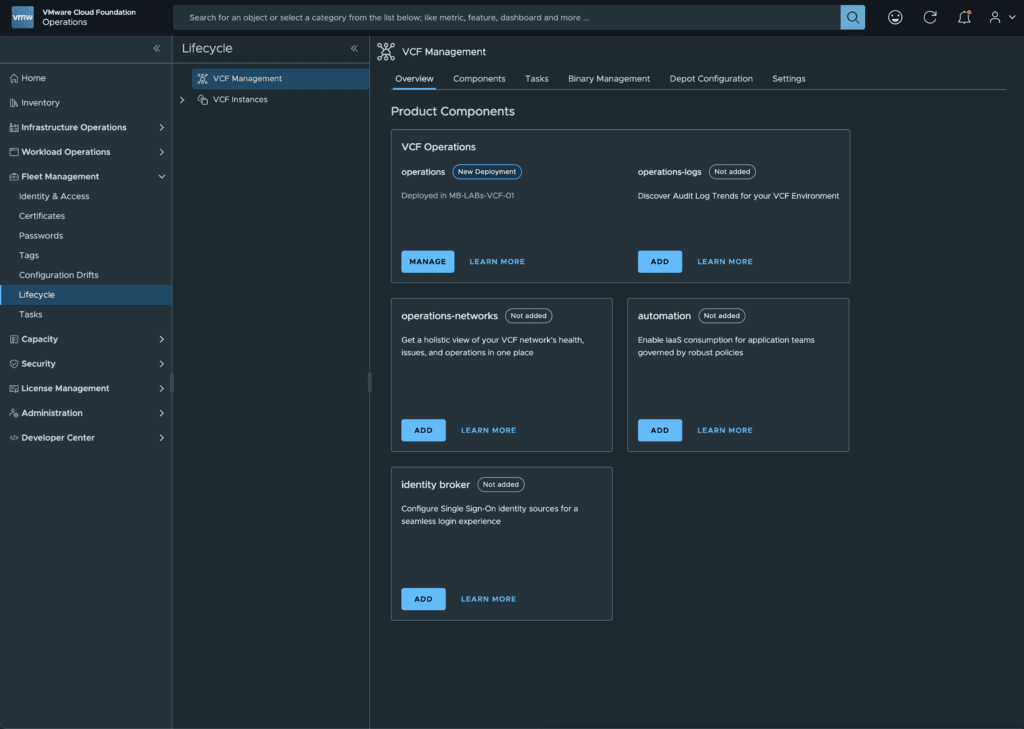
-I would also like to delve deeper into the topics of operations and management in the coming weeks and months and write a few blog posts on them. So it certainly won’t be boring, and I would be delighted if you would continue to accompany me on my VCF journey.
As always, if you have any questions or comments, please use the comment function directly below this post, send me an email, or use the contact form.

No responses yet